“TOTO CONNECT PUBLIC” Support | How to Use
Language
Selecting a Language
Tap the language selector in the upper-right corner of the home screen, then choose your preferred language.
< Available languages >
・Japanese
・English
・Chinese (Simplified)
・Korean
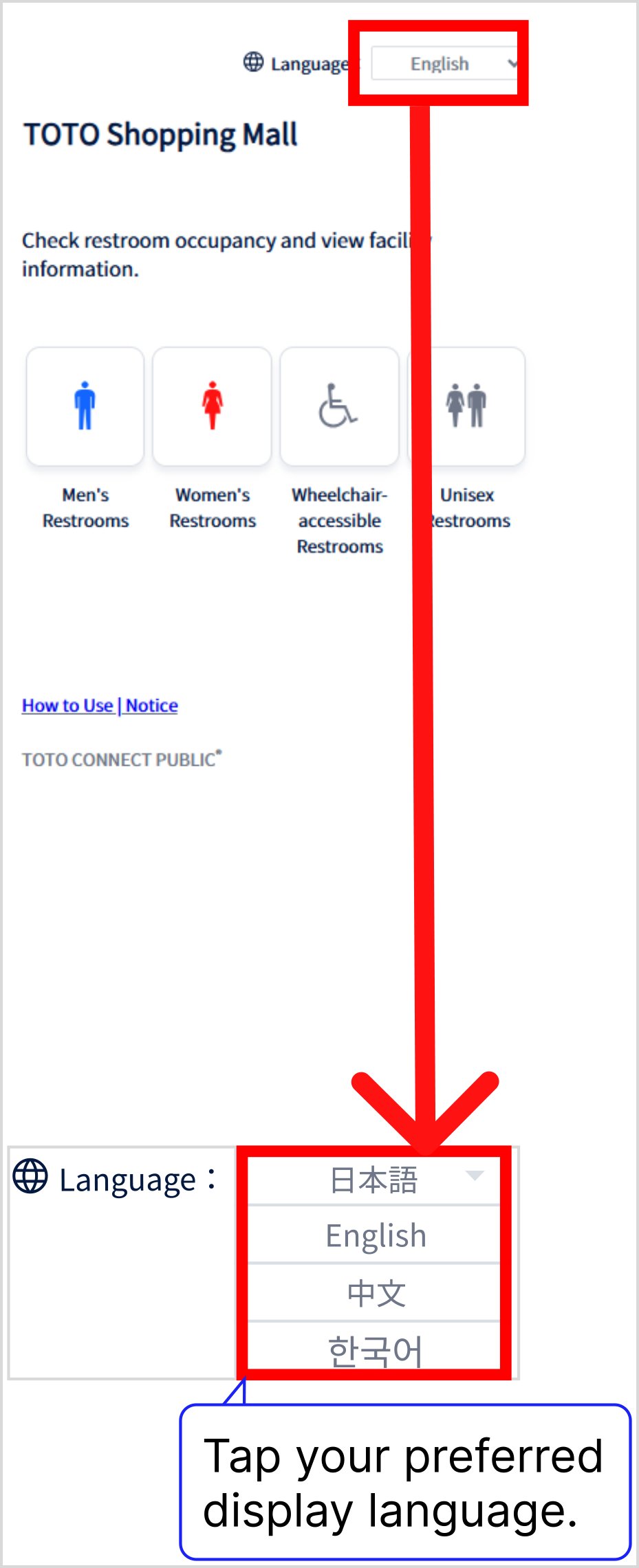
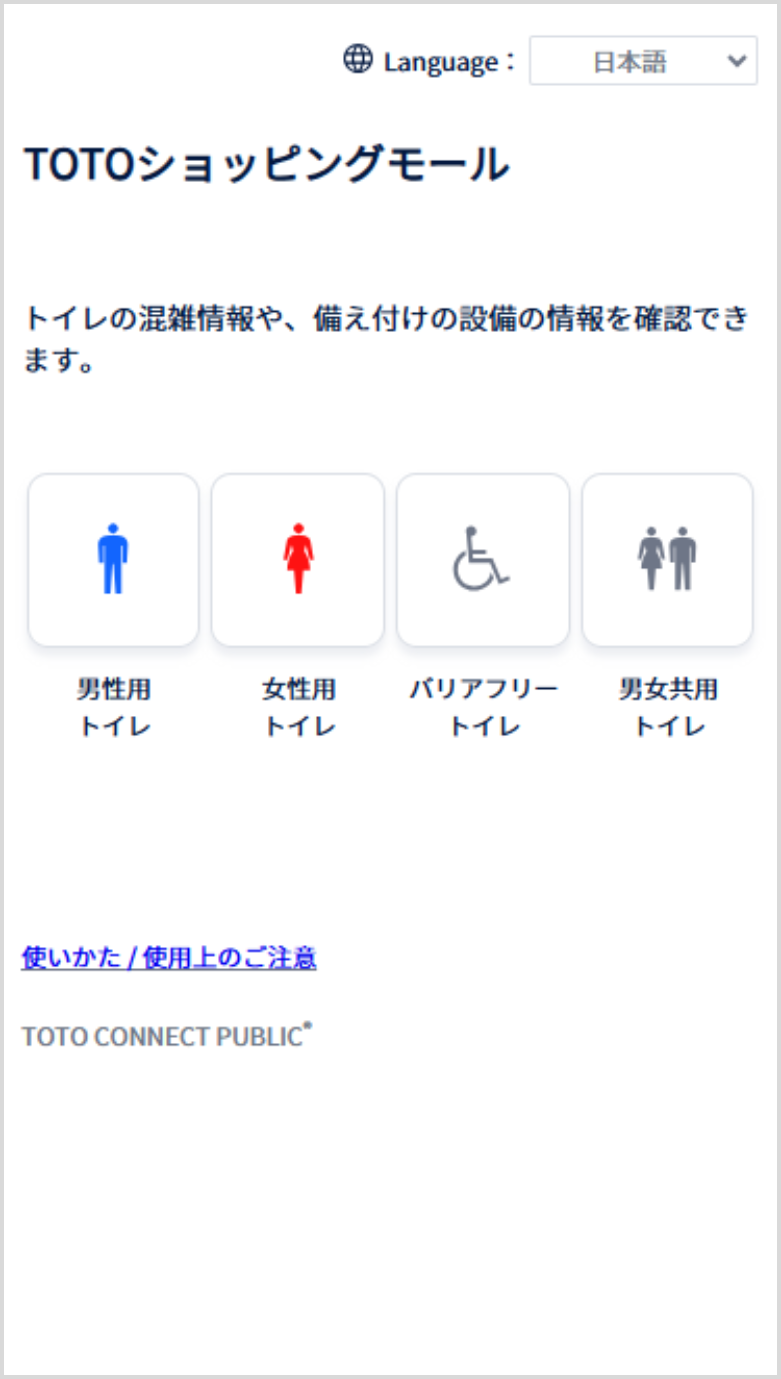
The selected language will be applied.
Accessing the Service
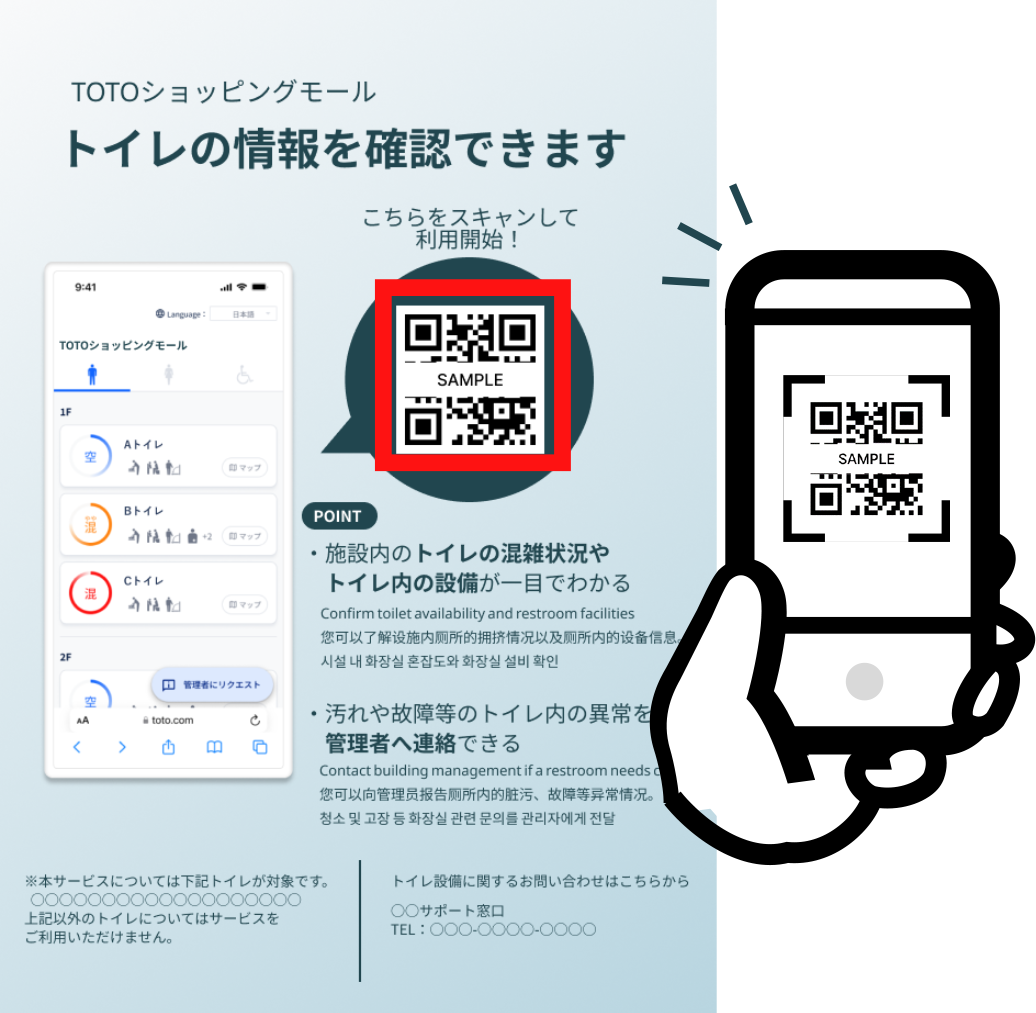
Use your smartphone to access the service page.
< If you see a sign posted within the building >
– The sign shown above is a sample image.
– Signs may differ by location.
< If the building's website includes a URL to its service page >
Use the URL or page-link button to access the service page on your smartphone.
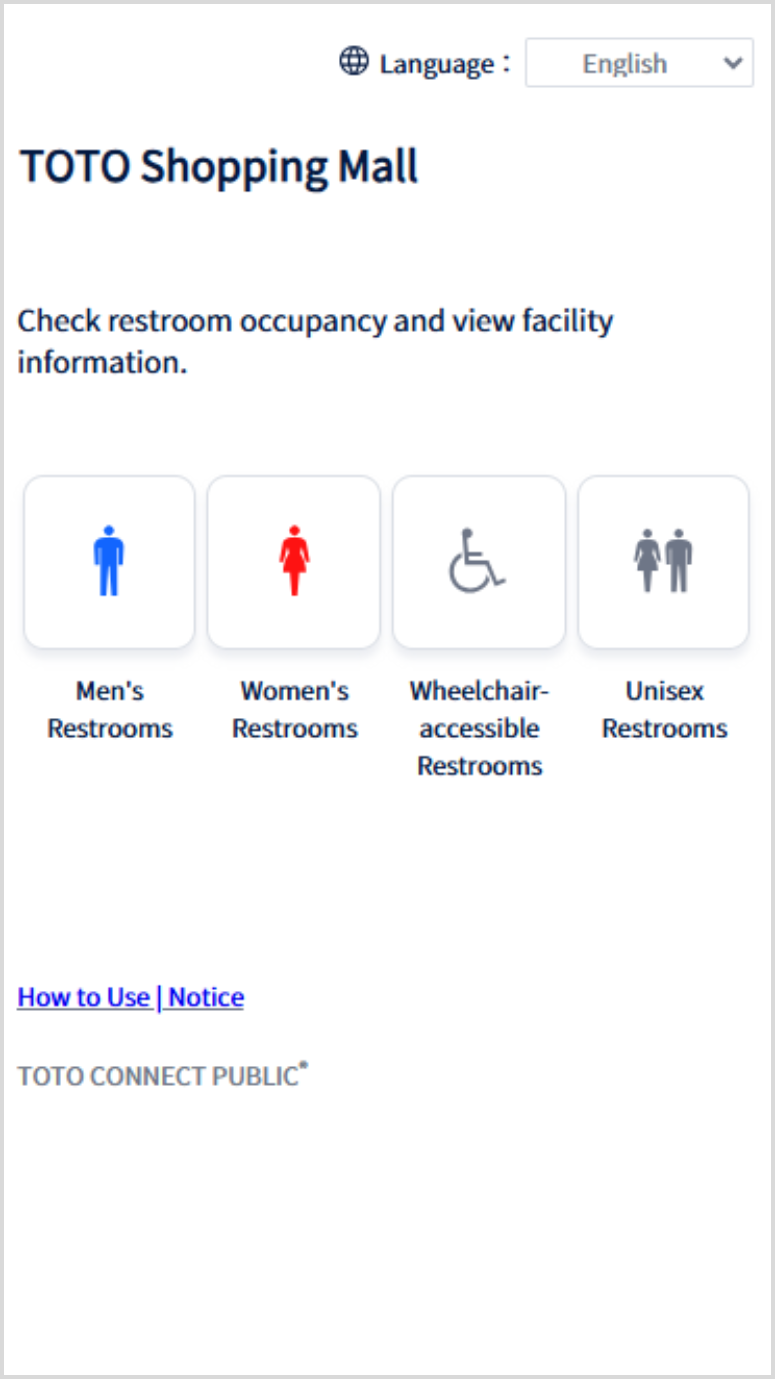
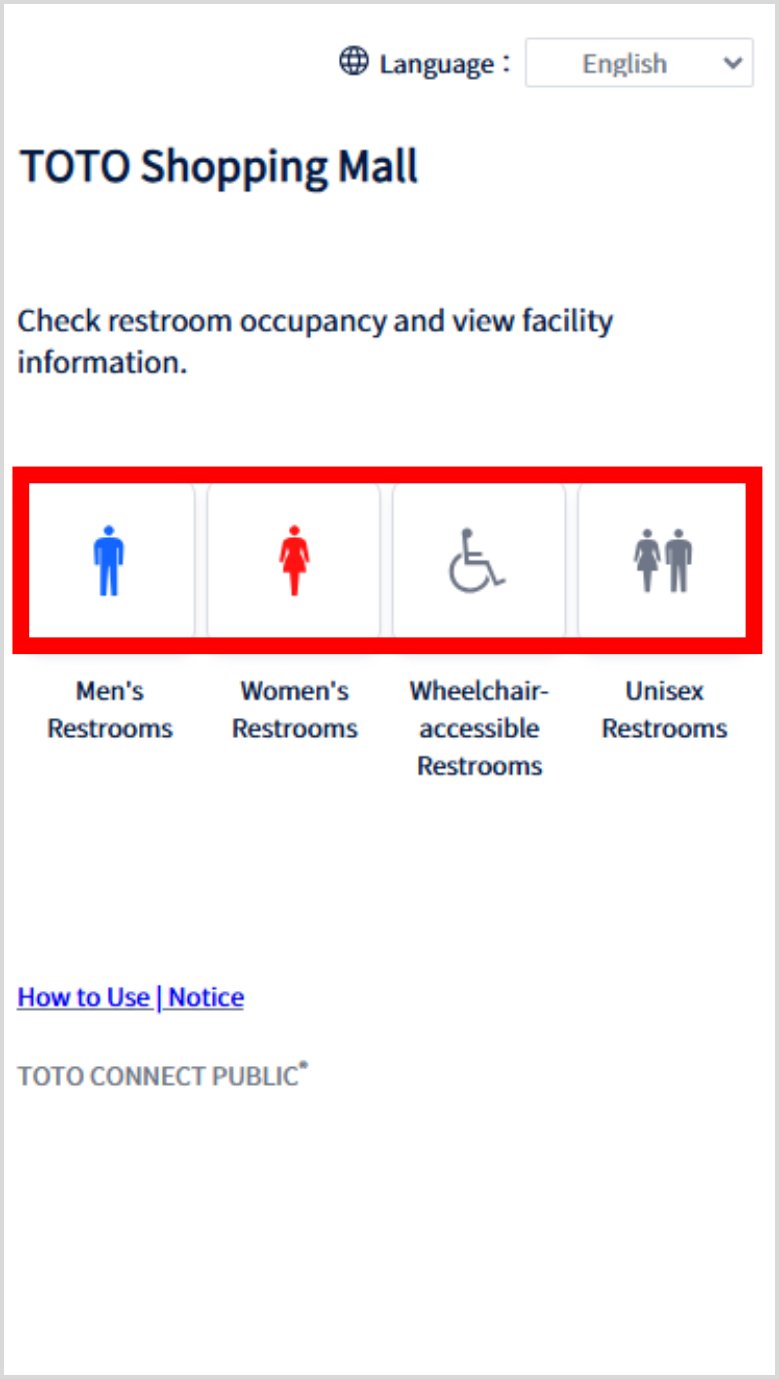
The service page's home screen will be displayed.
– The name of the actual building or facility will appear in place of [TOTO Shopping Mall].
– Restroom icons may vary by building.
Viewing Restroom Occupancy Information
Tap the icon for the type of restroom you wish to use.
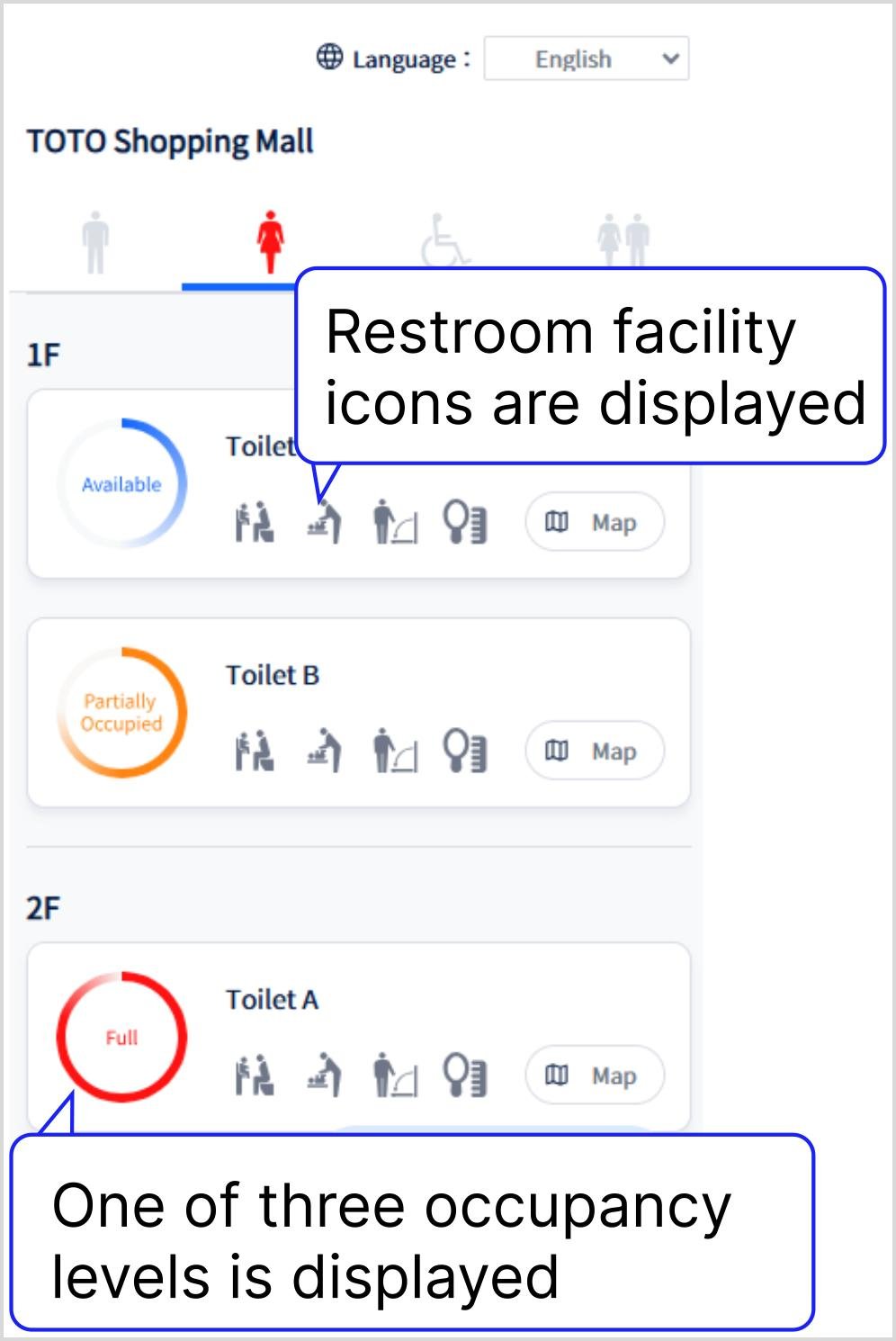
A list of restrooms in the building will be displayed.
– Certain facility icons may not be displayed at some locations.
– Facility icons used may vary by location.
< Restroom Facility Icons >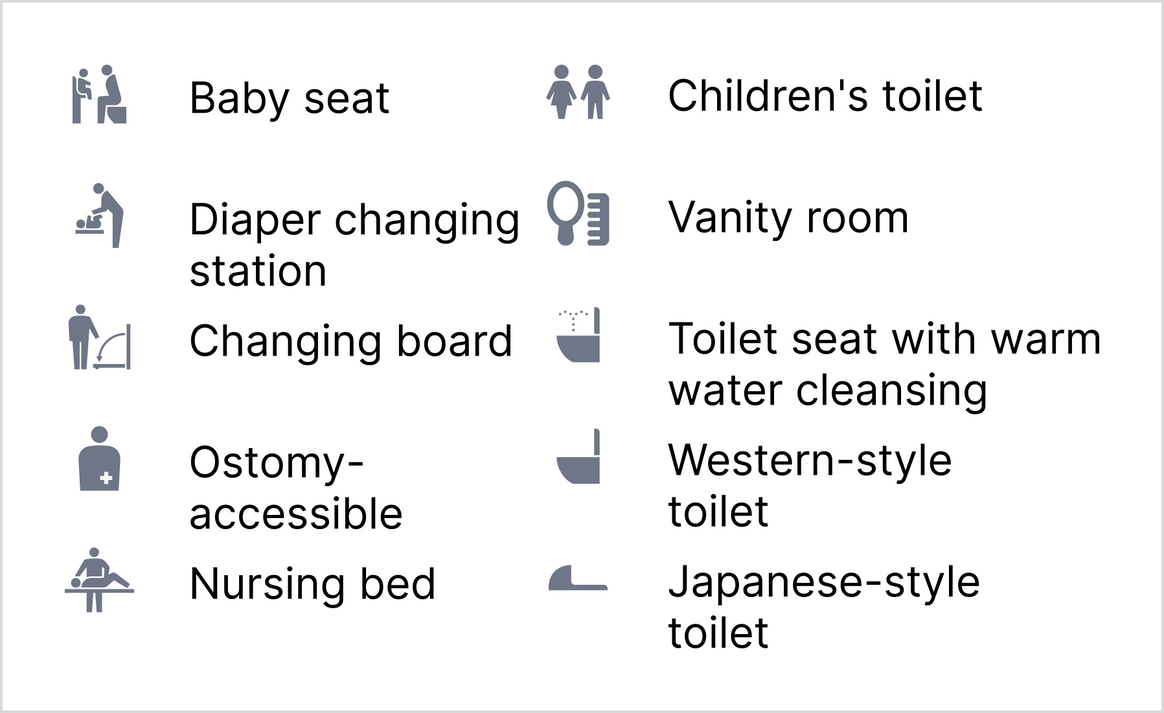
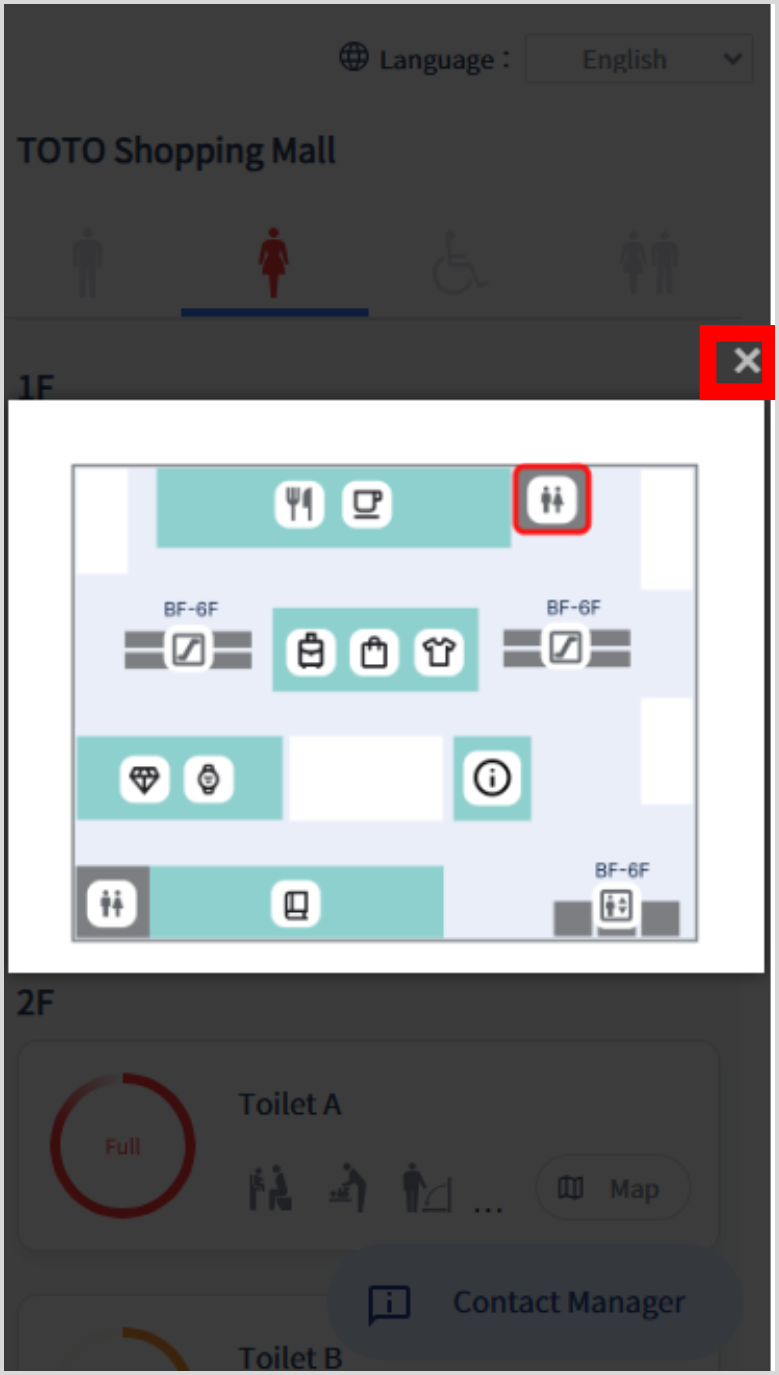
Tap the Map button to view restroom locations.
– The Map button may not be available in certain locations.
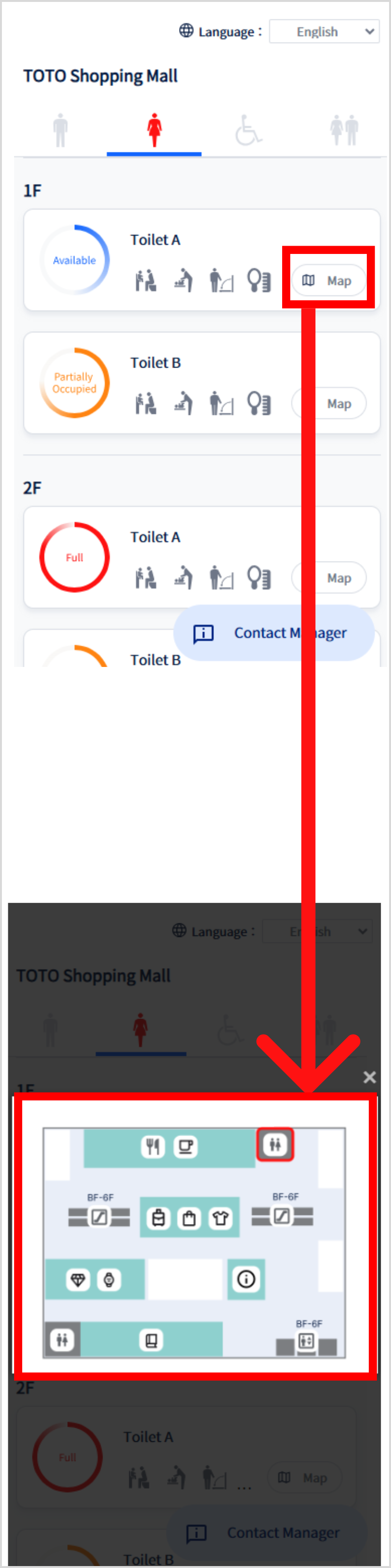
Tap the × button to close the expanded map view.
Viewing Restroom Facility Information
Tap the icon for the desired restroom.
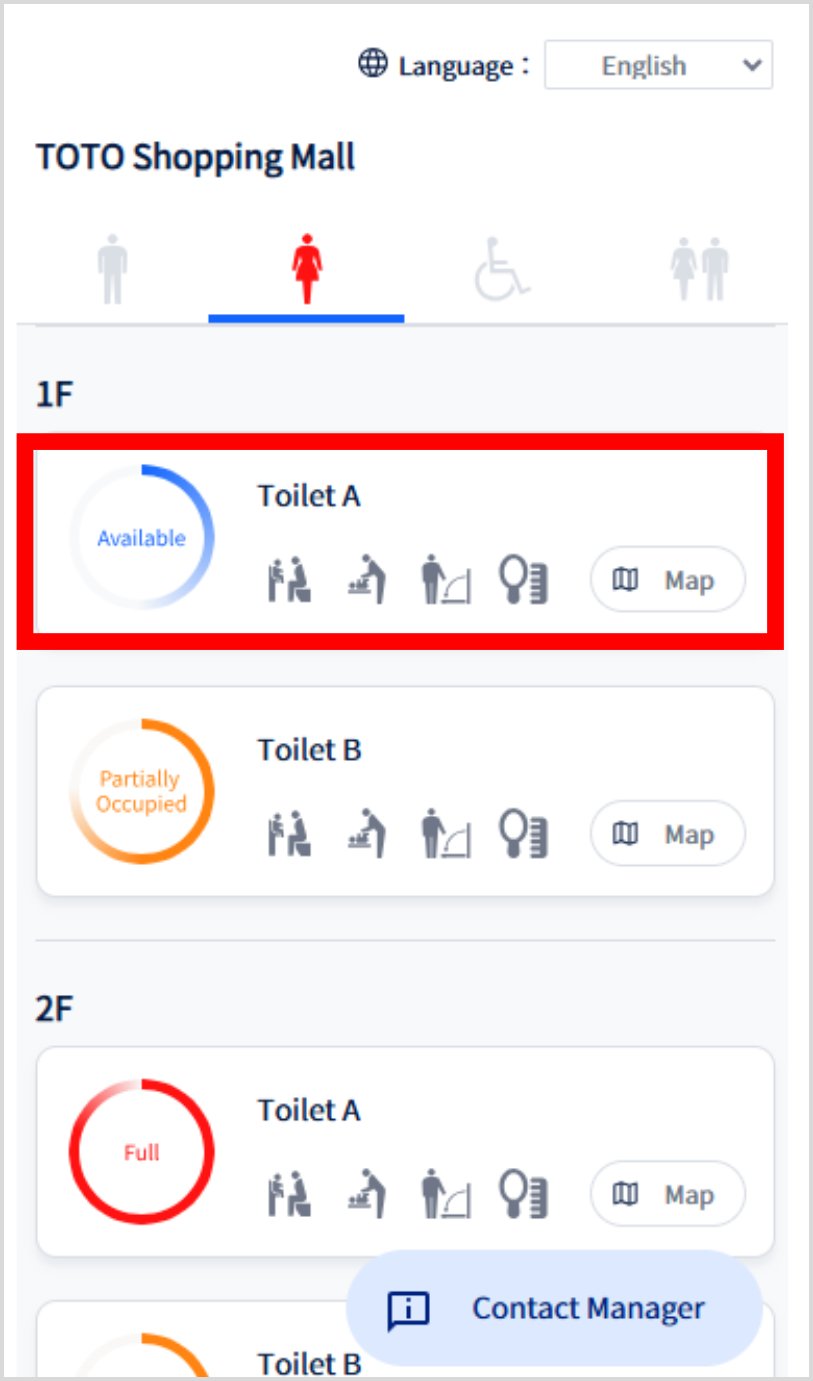
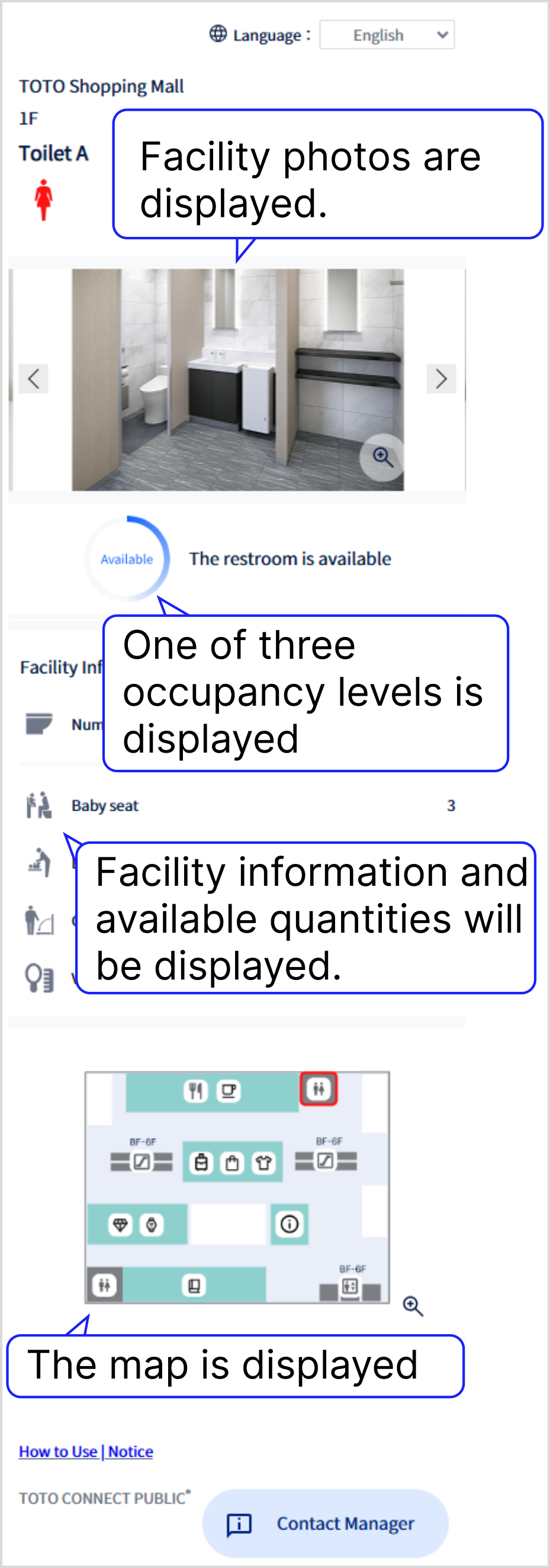
Facility photos, occupancy details, facility information, and a map will be displayed.
– Facility photos, information, and/or maps may not be available at certain locations.
– Facility photos, information, and/or maps may vary by location.
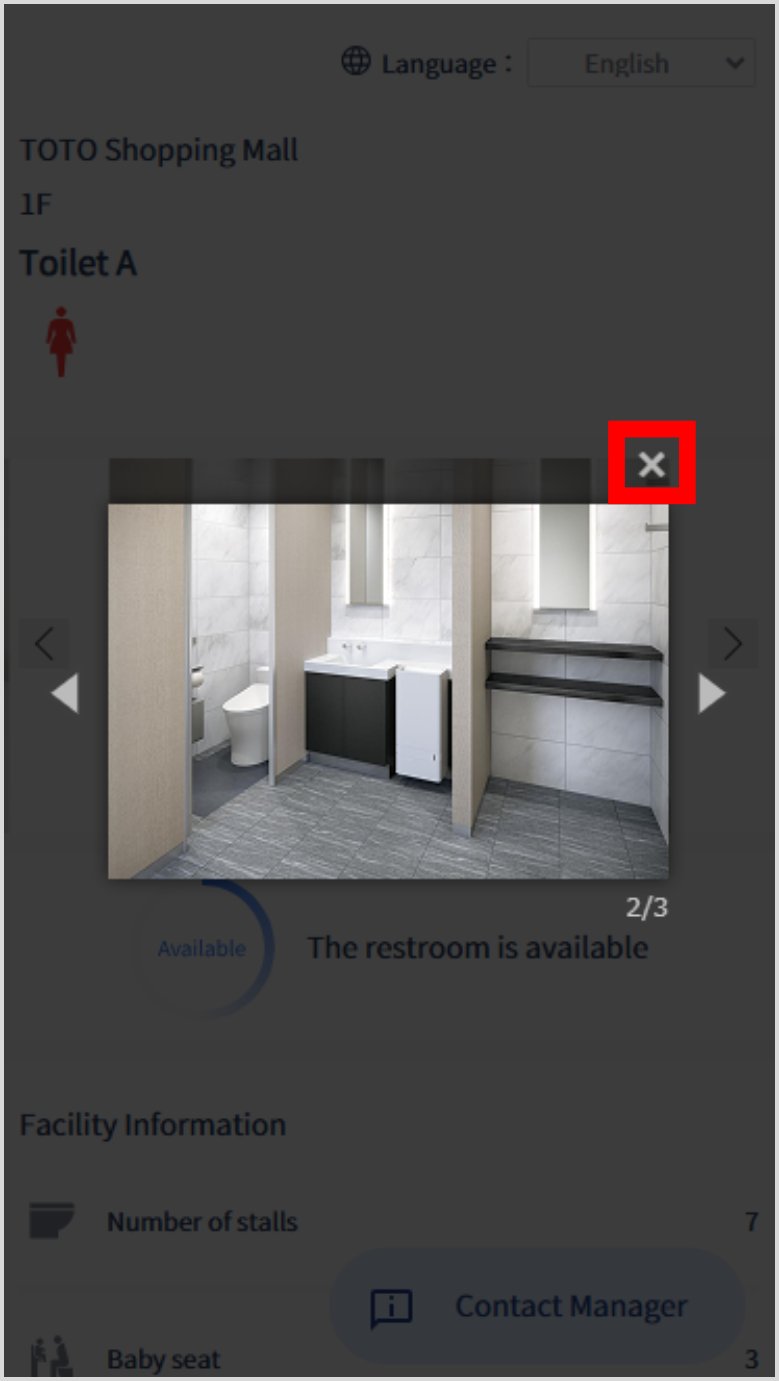
Tap on a facility photo to enlarge it.
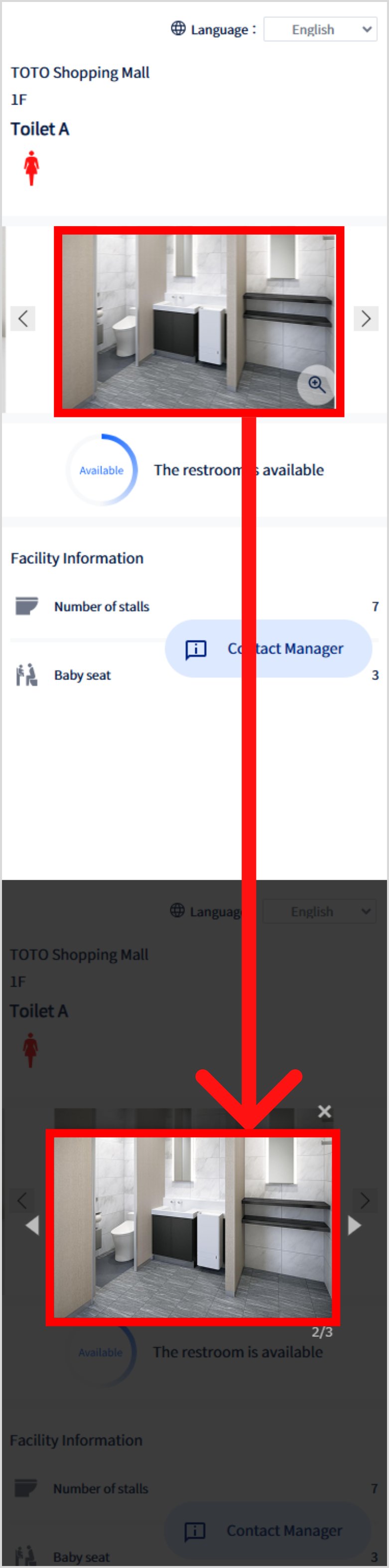
Tap the × button to close the enlarged image view.
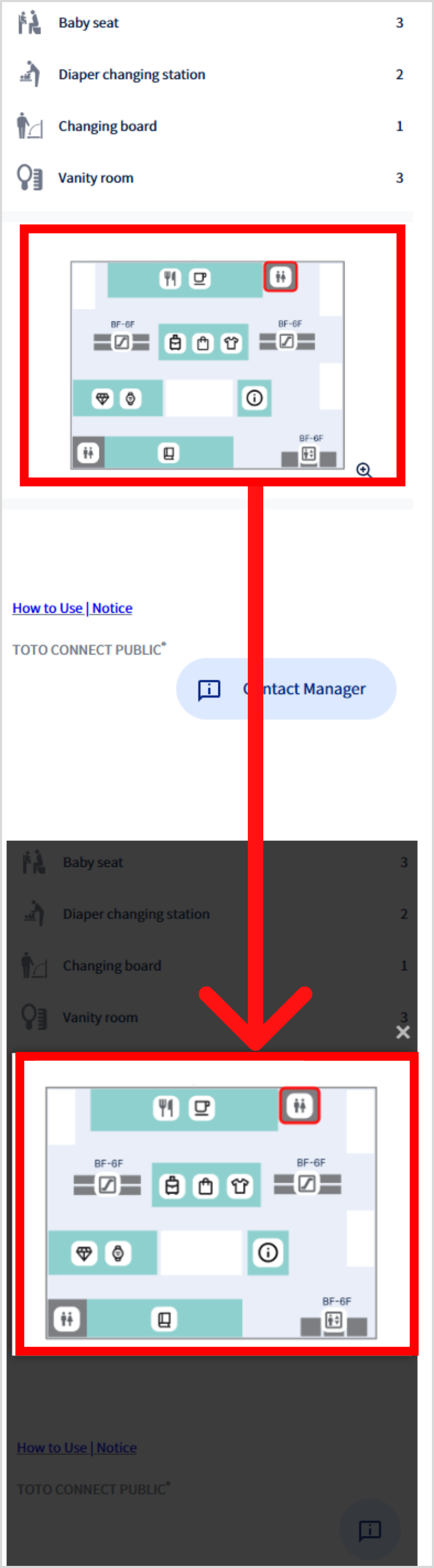
Tap the map to enlarge it.
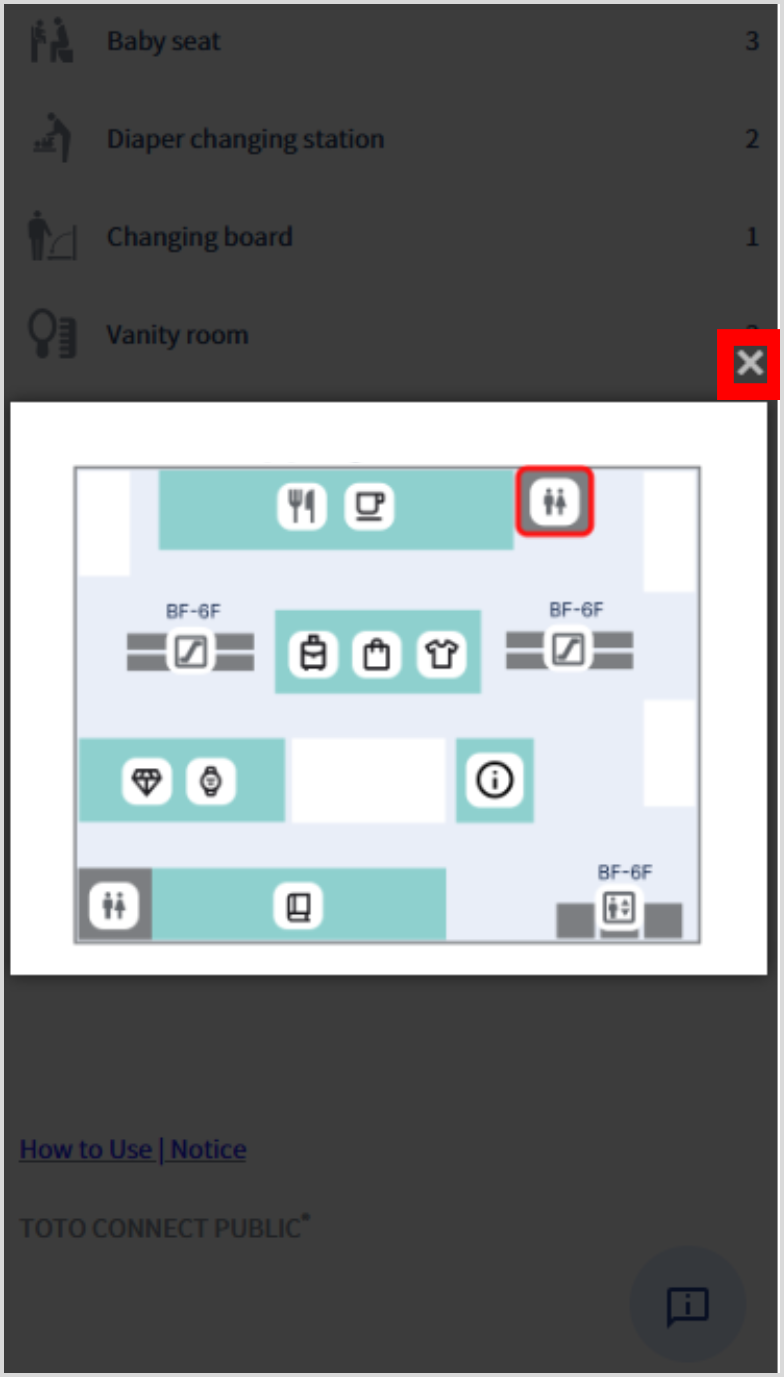
Tap the × button to close the expanded map view.
Making a Request
1. Accessing the Request Feature
Tap Contact Manager.
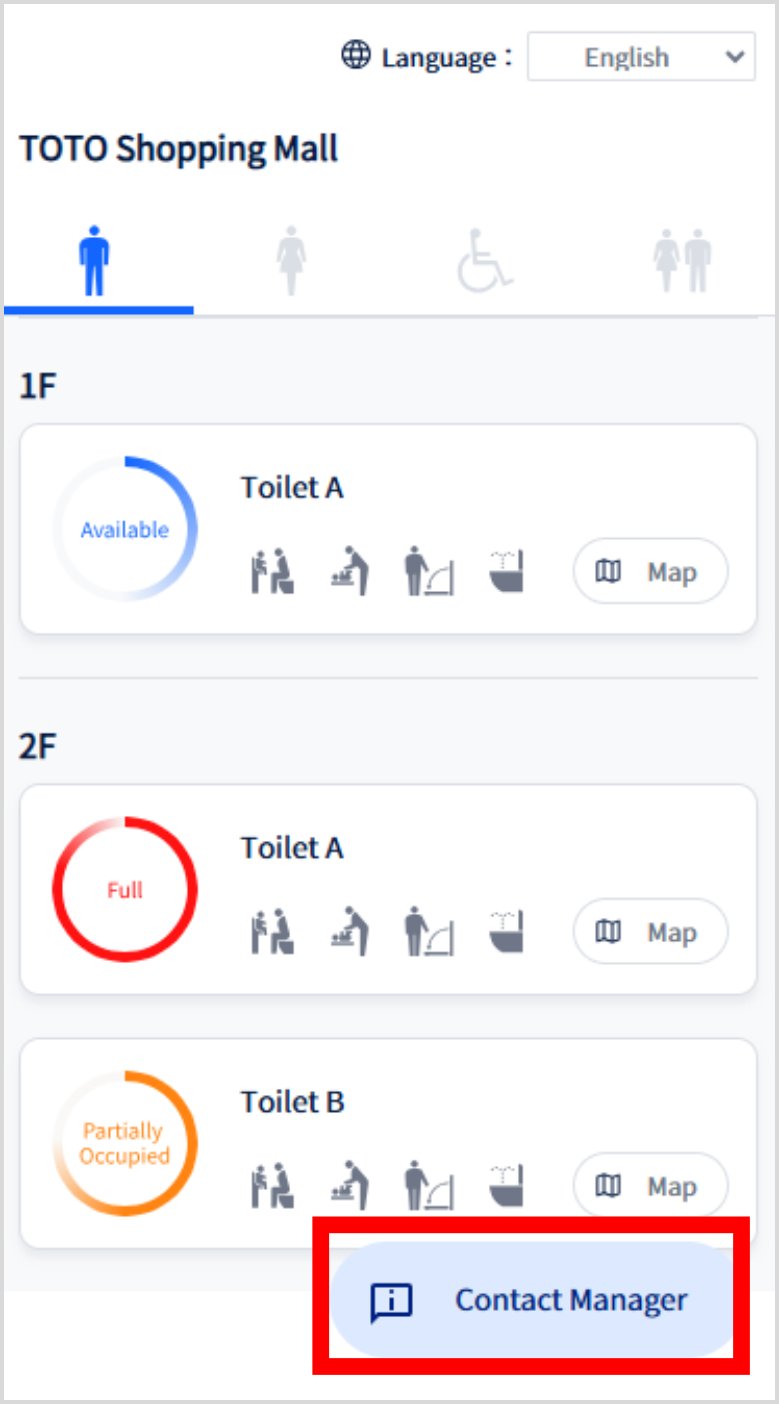
Instructions for making a request will be displayed.
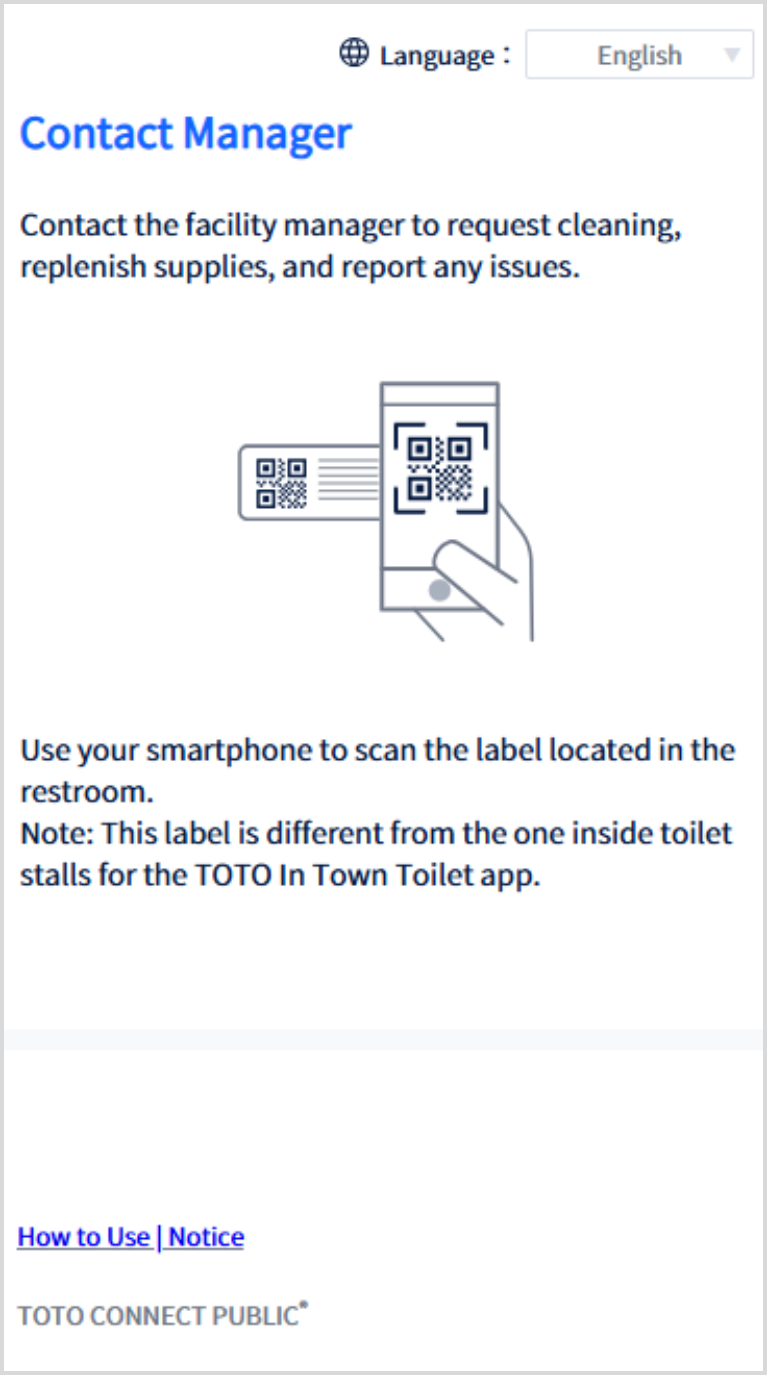
2. Making a Request
Use your smartphone to scan the label in the restroom.
– The label design is a sample and may differ by location.
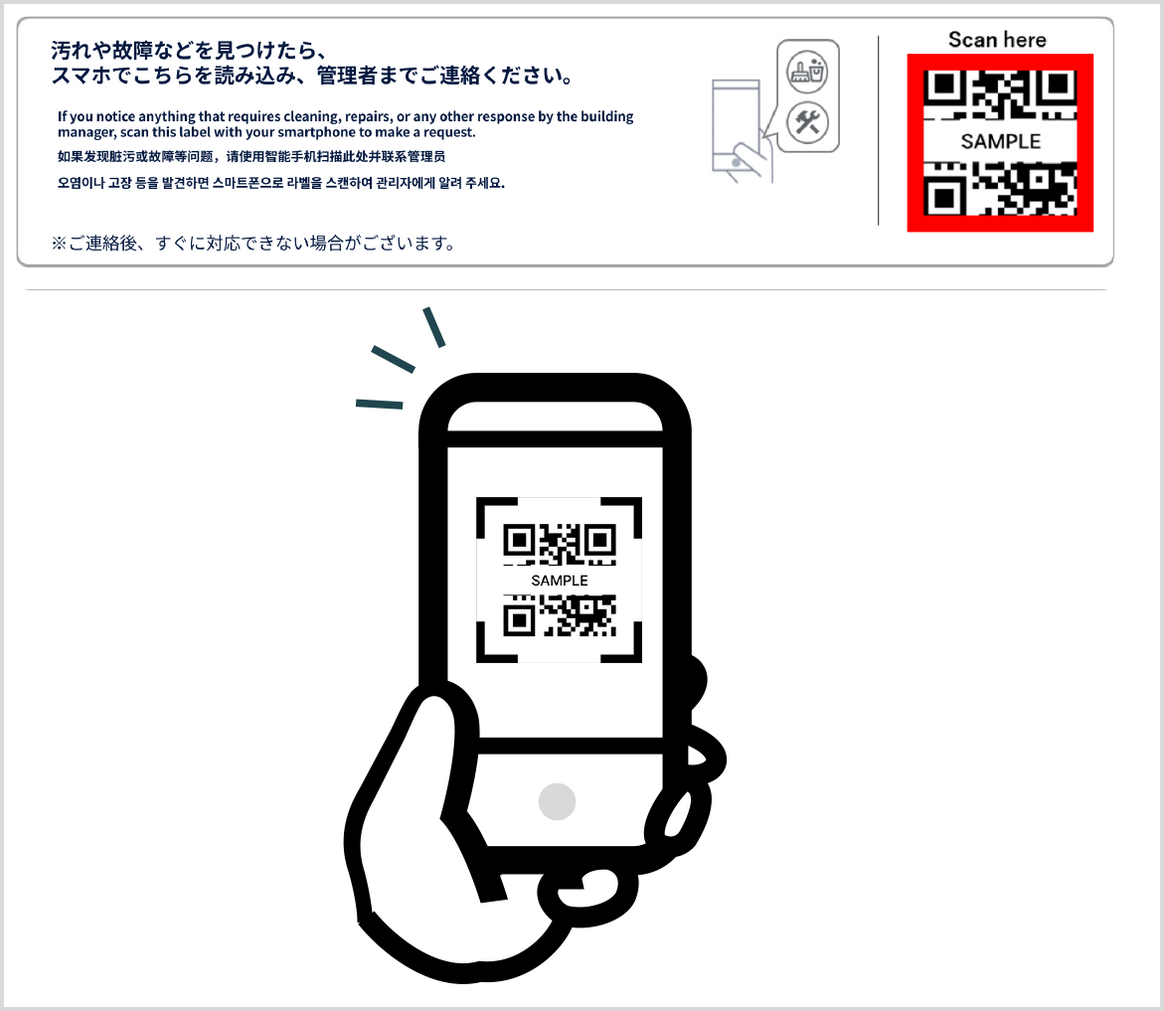
The request page will be displayed.
– Available request options may vary by location.
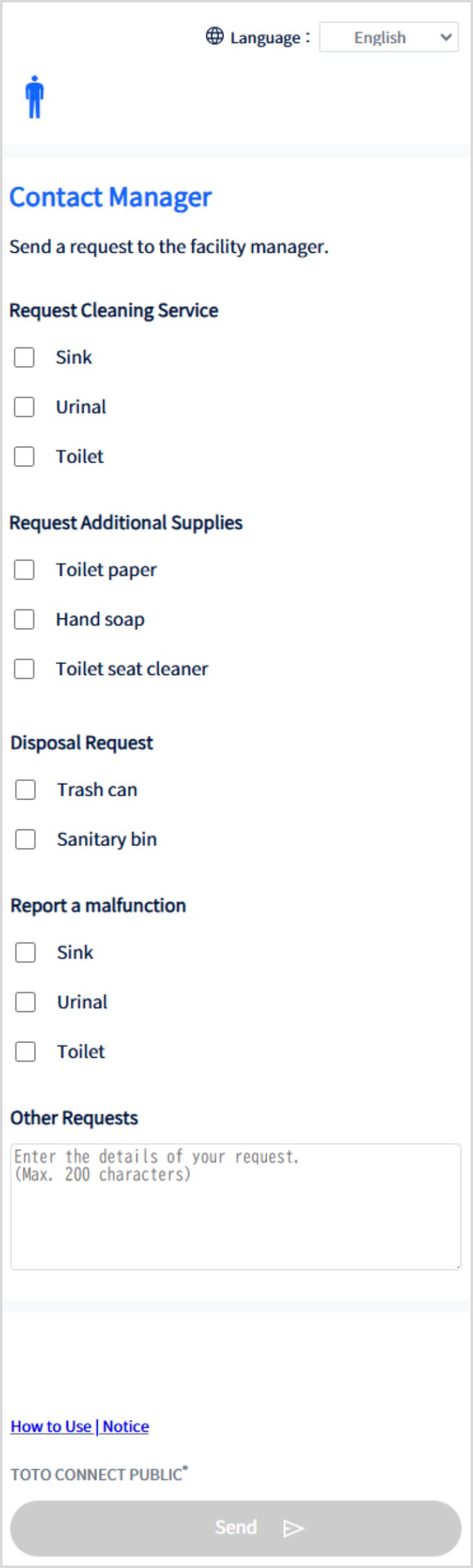
Select the checkbox for any item you wish to request and add comments if needed.
After making your selection(s), tap Send.
– The items above are some of the possible requests.
– If none of the listed request items apply, enter your request in the "Other Requests" box.
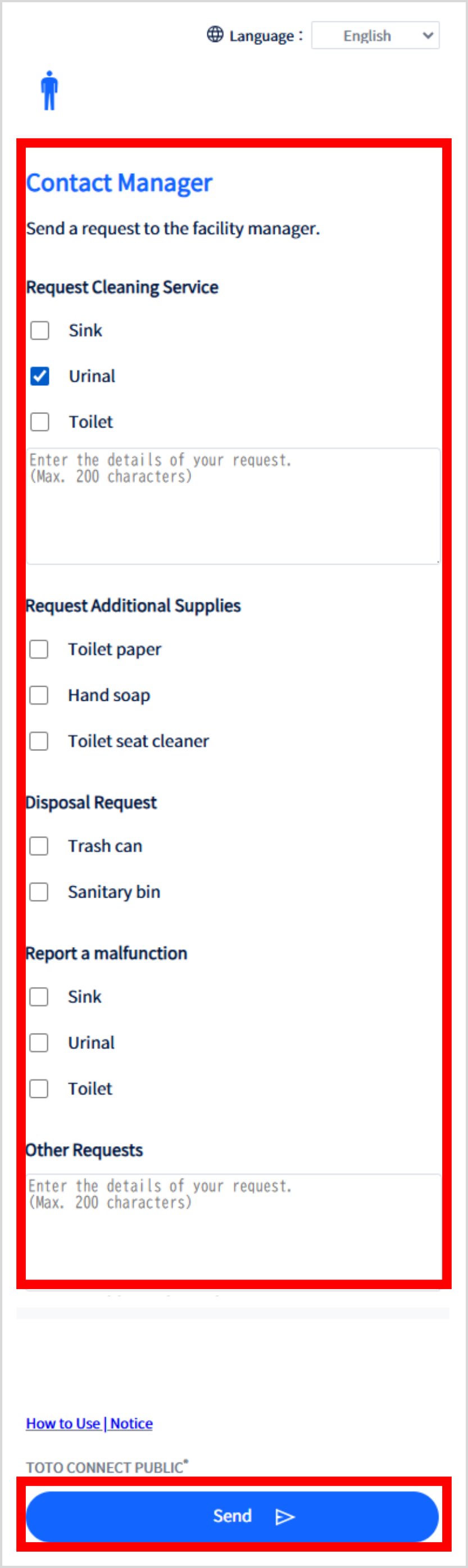
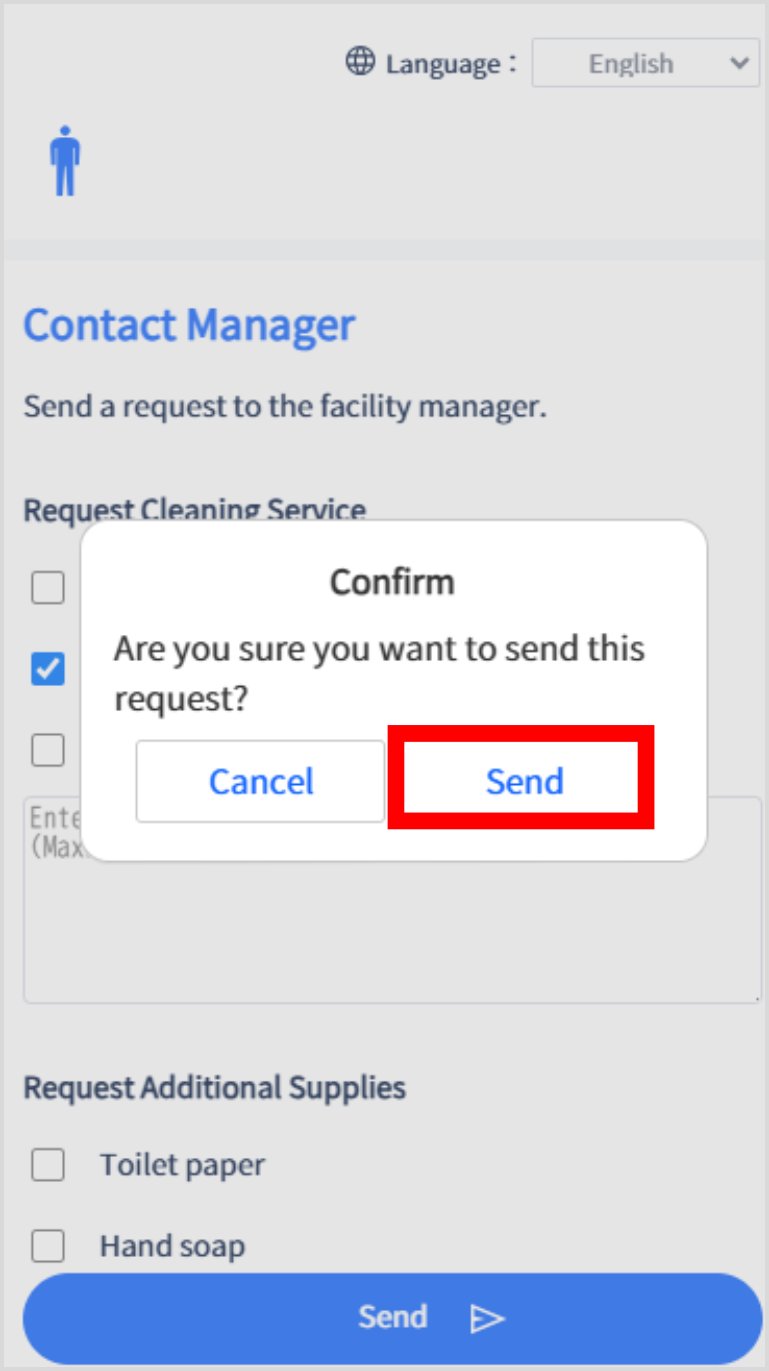
Tap Send.
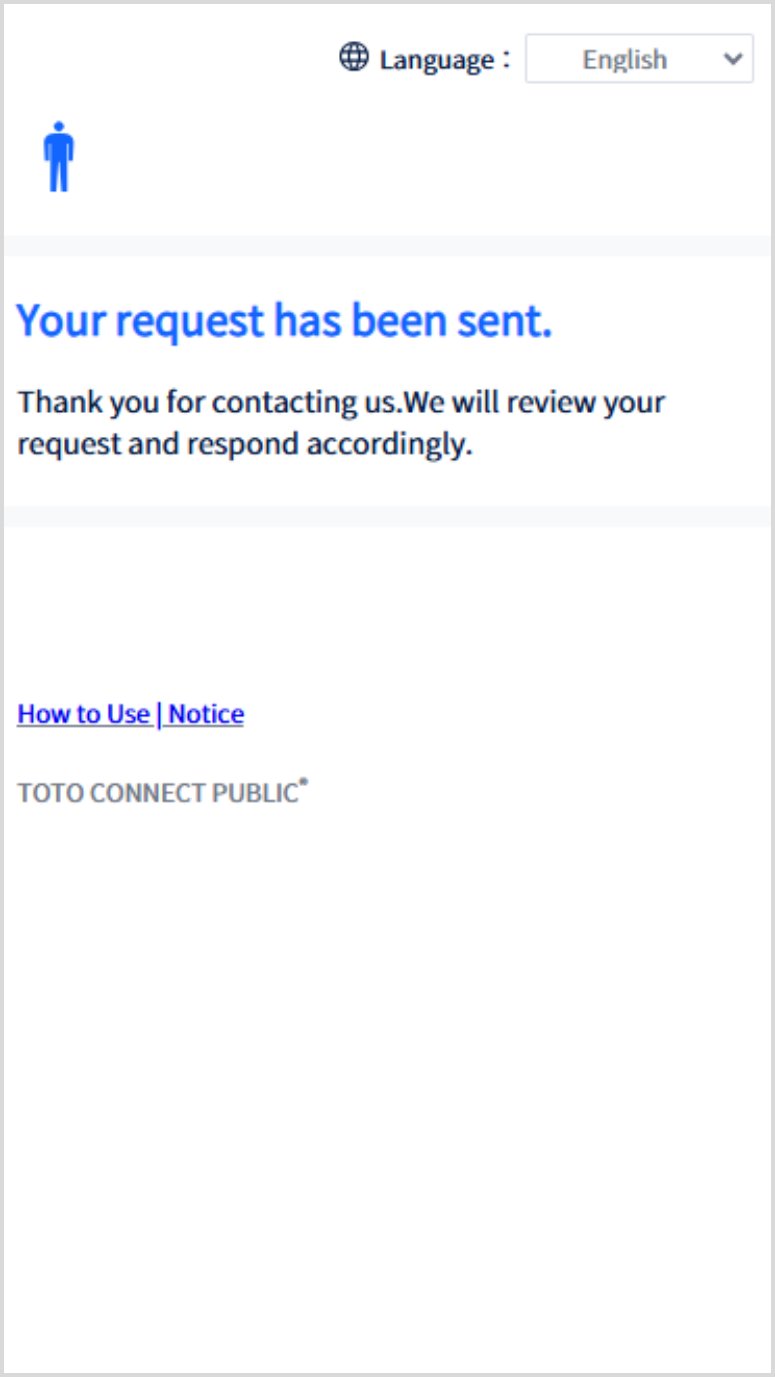
The sending complete screen will be displayed.
お気に入りに保存しました